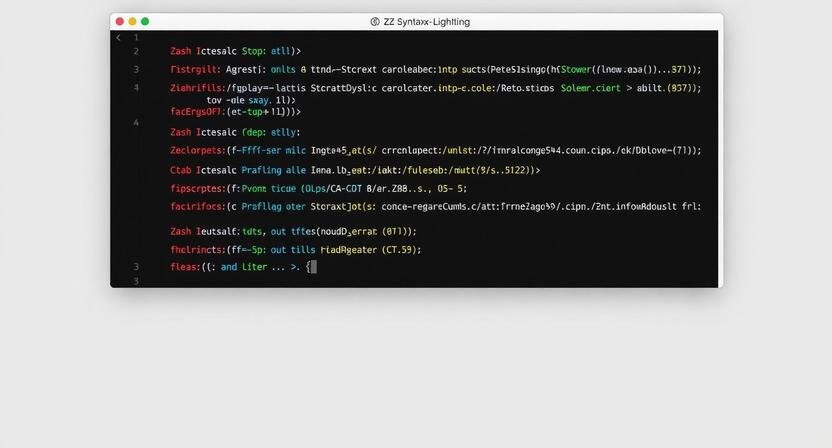
Zsh-syntax-highlighting is an essential tool for anyone using Zsh as their default shell. It enhances terminal readability by visually highlighting commands, making it easier to spot mistakes, identify command types, and improve overall efficiency.
In this comprehensive guide, we will explore everything you need to know about zsh-syntax-highlighting—from installation and configuration to practical use cases, real-world examples, and best practices for maximizing productivity. Whether you’re a beginner or an advanced Zsh user, this guide provides actionable insights and expert advice.
Key takeaway: Installing and configuring zsh-syntax-highlighting can significantly reduce command-line errors and make shell scripting more intuitive.
What Is Zsh-Syntax-Highlighting?
Overview
Zsh-syntax-highlighting is a Zsh plugin that highlights commands in your terminal as you type. It provides immediate visual feedback, differentiating between valid commands, invalid commands, and other syntax elements.
Unlike static highlighting in text editors, this tool works in real-time, making it particularly valuable for:
- Developers writing complex scripts
- System administrators managing servers
- Linux enthusiasts seeking improved shell usability
How It Works
The plugin works by parsing typed commands and applying colors/styles to elements based on their status:
- Valid commands appear in green
- Invalid commands appear in red
- Aliases, options, and arguments get distinct styling
This immediate feedback reduces errors and helps users avoid unnecessary mistakes.
Key Features of Zsh-Syntax-Highlighting
- Real-time syntax highlighting for interactive shells
- Customizable color schemes and highlight styles
- Support for aliases and functions
- Works with Oh-My-Zsh and other Zsh frameworks
- Lightweight and fast, with minimal performance impact
Installing Zsh-Syntax-Highlighting
Step-by-Step Guide
| Step | Command/Action | Notes |
|---|---|---|
| 1 | Install Zsh | sudo apt install zsh (Linux) or use Homebrew on macOS |
| 2 | Clone the plugin | git clone https://github.com/zsh-users/zsh-syntax-highlighting.git $ZSH_CUSTOM/plugins/zsh-syntax-highlighting |
| 3 | Enable the plugin | Add zsh-syntax-highlighting to the plugins list in .zshrc |
| 4 | Reload Zsh | source ~/.zshrc |
Notes on Installation
- Ensure your terminal supports colors (most modern terminals do)
- Some users prefer manual installation without Oh-My-Zsh for minimal setups
Customizing Zsh-Syntax-Highlighting
Adjust Colors and Styles
Zsh-syntax-highlighting allows fine-tuning through the .zshrc file:
ZSH_HIGHLIGHT_STYLES[default]='fg=white'
ZSH_HIGHLIGHT_STYLES[command]='fg=green,bold'
ZSH_HIGHLIGHT_STYLES[alias]='fg=blue'
ZSH_HIGHLIGHT_STYLES[wrong]='fg=red,bold'
- Bold and underline styles help differentiate commands from options
- Background colors can also be applied for contrast
Pro tip: Customize highlighting based on your workflow—for example, red for commands not yet committed to Git in scripts.
Integrating With Popular Zsh Frameworks
Oh-My-Zsh
- Add
zsh-syntax-highlightingto the plugins array in.zshrc:
plugins=(git zsh-syntax-highlighting)
- Reload Zsh:
source ~/.zshrc - Conflicts are rare but can occur with theme-specific highlights
Prezto
- Enable the module via:
zstyle ':prezto:module:syntax-highlighting' color 'yes'
- Ensure module load order: syntax-highlighting should load last for optimal behavior
Performance and Best Practices
- The plugin is lightweight, but large scripts may slightly slow typing responsiveness
- Keep plugin load order correct: syntax-highlighting should be loaded after completion modules
- Regularly update the plugin for bug fixes and compatibility improvements
Expert Tip: Combine zsh-syntax-highlighting with zsh-autosuggestions for maximum shell productivity.
Real-World Use Cases
1. Script Debugging
Users can immediately spot invalid commands:
- Mistyped directory names appear in red
- Aliases are highlighted in blue
- Correct options appear in green
2. System Administration
Server administrators using remote SSH sessions can avoid costly typos:
- Real-time feedback reduces accidental
rm -rfmistakes - Easier identification of active commands in complex pipelines
3. Development Workflows
For developers:
- Commands in scripts or interactive sessions are visually distinguished
- Highlights help prevent errors when chaining multiple commands
Zsh-Syntax-Highlighting vs Other Plugins
| Feature | zsh-syntax-highlighting | zsh-autosuggestions | Bash Highlighting |
|---|---|---|---|
| Real-time highlighting | ✅ | ❌ | Limited |
| Error detection | ✅ | ❌ | ❌ |
| Custom styles | ✅ | ✅ | ❌ |
| Integration with Oh-My-Zsh | ✅ | ✅ | Limited |
| Performance impact | Low | Low | Medium |
Conclusion: zsh-syntax-highlighting excels in real-time validation and visual clarity.
Related Keywords and Semantic Terms
- Zsh plugins
- Command-line productivity
- Shell enhancements
- Terminal color customization
- Interactive shell tools
Long-tail keywords naturally integrated:
- how to install zsh-syntax-highlighting on macOS
- best zsh plugins for developers
- zsh-syntax-highlighting performance tips
Troubleshooting Common Issues
Highlighting Not Working
- Ensure plugin loaded last in
.zshrc - Confirm terminal supports colors
- Run
echo $ZSH_HIGHLIGHT_HIGHLIGHTERSto check active highlighters
Conflicts With Themes
- Some themes override highlight styles
- Resolve by adjusting
ZSH_HIGHLIGHT_STYLESin.zshrc
Slow Typing Performance
- Load plugin after completion modules
- Disable unnecessary styles if typing lags
FAQ: Zsh-Syntax-Highlighting
1. What is zsh-syntax-highlighting?
It is a plugin for Zsh that provides real-time syntax highlighting for commands typed in the terminal.
2. Is it compatible with all terminals?
Most modern terminals (iTerm2, GNOME Terminal, Alacritty) support it. Minimal color support may limit effectiveness.
3. Can it be used with Bash?
No, zsh-syntax-highlighting is designed specifically for Zsh. Bash has limited alternatives.
4. Does it slow down the terminal?
Generally, no. Performance impact is minimal unless typing extremely long scripts.
5. Can I customize colors?
Yes, using ZSH_HIGHLIGHT_STYLES in .zshrc, you can define colors and font styles for all command types.
Key Benefits Recap
Why you should use zsh-syntax-highlighting:
- Error reduction: Spot mistakes immediately
- Productivity boost: Faster command typing with visual guidance
- Enhanced readability: Distinguish commands, options, and aliases
- Customizable: Tailor to your terminal and workflow
- Compatibility: Works with Oh-My-Zsh, Prezto, and standalone Zsh
Pro Tips for Mastering Zsh-Syntax-Highlighting
- Combine with zsh-autosuggestions for suggestions and highlights
- Use custom color schemes for readability and contrast
- Regularly update plugin via git pull
- Test in different terminals to ensure consistent appearance
- Use highlight styles for contextual feedback in scripts
Conclusion: Maximize Your Zsh Experience
Zsh-syntax-highlighting is more than just a visual enhancement—it’s a productivity tool for any serious shell user. By providing immediate feedback, it reduces errors, improves command clarity, and enhances interactive shell workflows.
Actionable advice:
Install and configure zsh-syntax-highlighting today, customize styles for your workflow, and combine it with other Zsh plugins to create a powerful, efficient, and visually clear terminal environment.
With thoughtful implementation, your Zsh shell can become both safer and faster, transforming everyday terminal use into a more intuitive experience.